Authentication Module
This application includes a production-ready authentication system designed to handle real-world abuse. It supports Password Login, OTP Login, and TOTP (Google Authenticator). Each flow is protected with cooldowns, attempt limits, and temporary lockouts to reduce spam and block illegal attempts.
Password security modes, OTP via Email/SMS/WhatsApp, TOTP with backup codes, email verification, forgot password, forced password change, remember-me login, plus admin alerts for suspicious behavior.
Protections can be overridden from the admin dashboard under Settings → Security and Settings → OTP/TOTP.
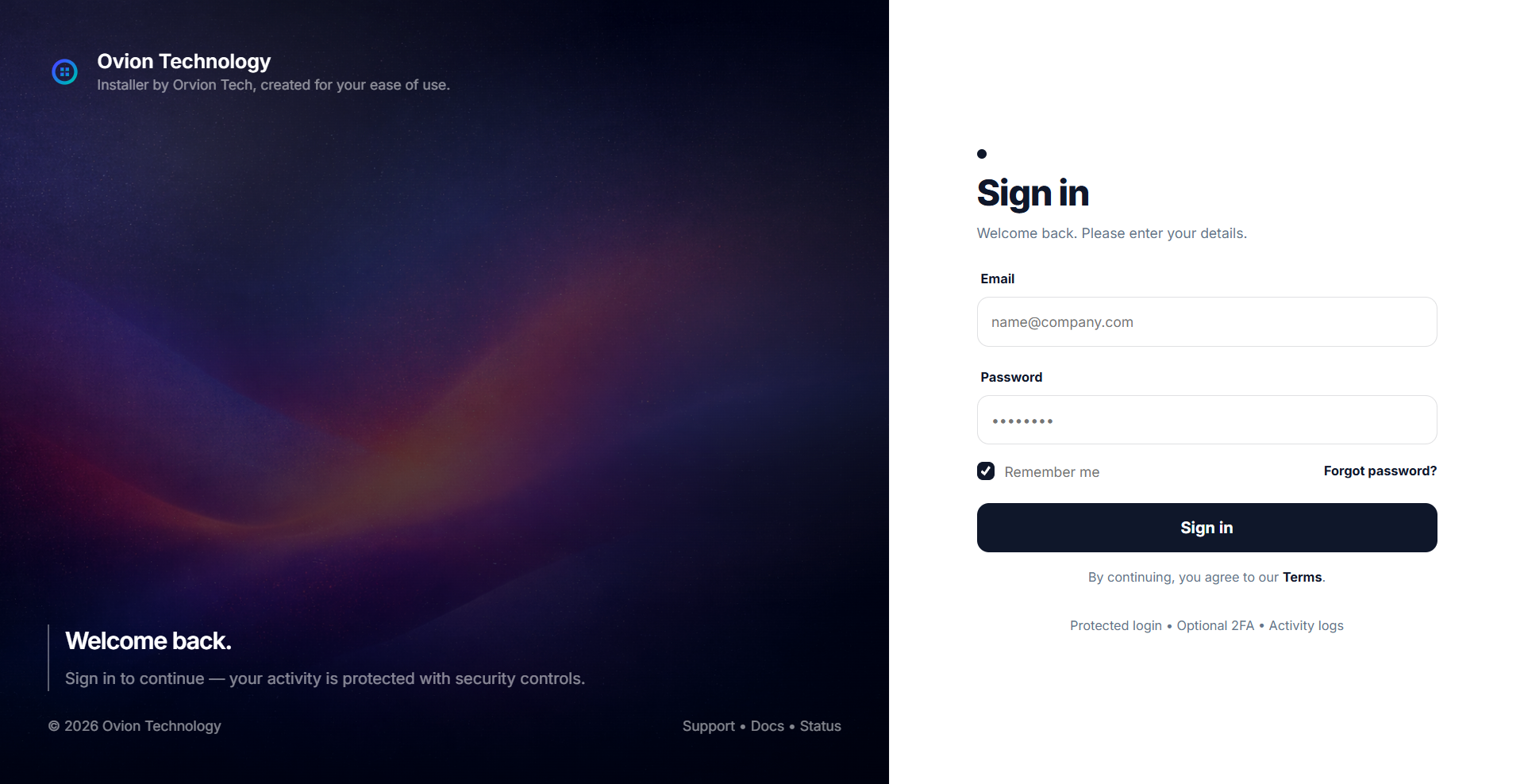
1) Password Login
Password login uses email and password, but it is not a basic form. It includes built-in protection against brute-force attempts by limiting consecutive failures, applying optional cooldown delays, and temporarily locking access when abuse is detected.
Password rules are controlled using three security modes: a relaxed mode for testing, a basic mode for day-to-day usage, and an advanced mode for production where stronger passwords are enforced. This gives you flexibility while keeping the system secure.
- Login attempts are limited to prevent repeated guessing and automated attacks.
- When the limit is reached, the user is temporarily locked for a short window.
- Optional attempt cooldown can slow down bots by adding a short delay.
- Session safety can invalidate existing logins after a password change.
- Email verification can be enforced before users are allowed inside the system.
2) OTP Login (Email / SMS / WhatsApp)
OTP login can be enabled by the administrator for stronger sign-in security. When enabled, users must enter a one-time code to complete login. OTP can be delivered through Email (SMTP), and optionally through SMS or WhatsApp using Twilio.
OTP delivery is protected against spam. OTPs expire quickly, resend is controlled by cooldown, OTP generation is rate-limited, and incorrect OTP attempts are capped. Repeated abuse can trigger temporary lockouts to stop brute forcing and OTP hammering.
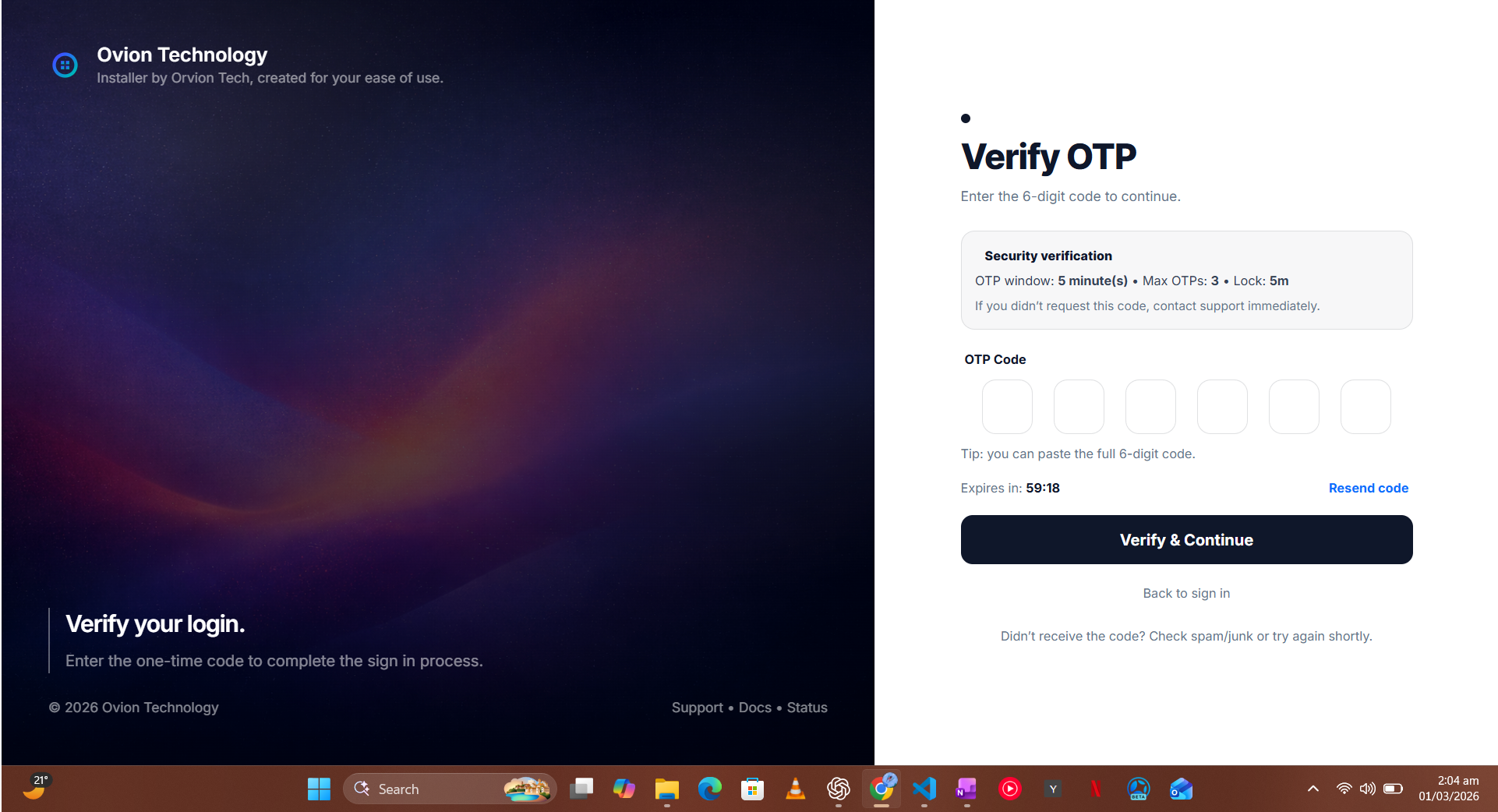
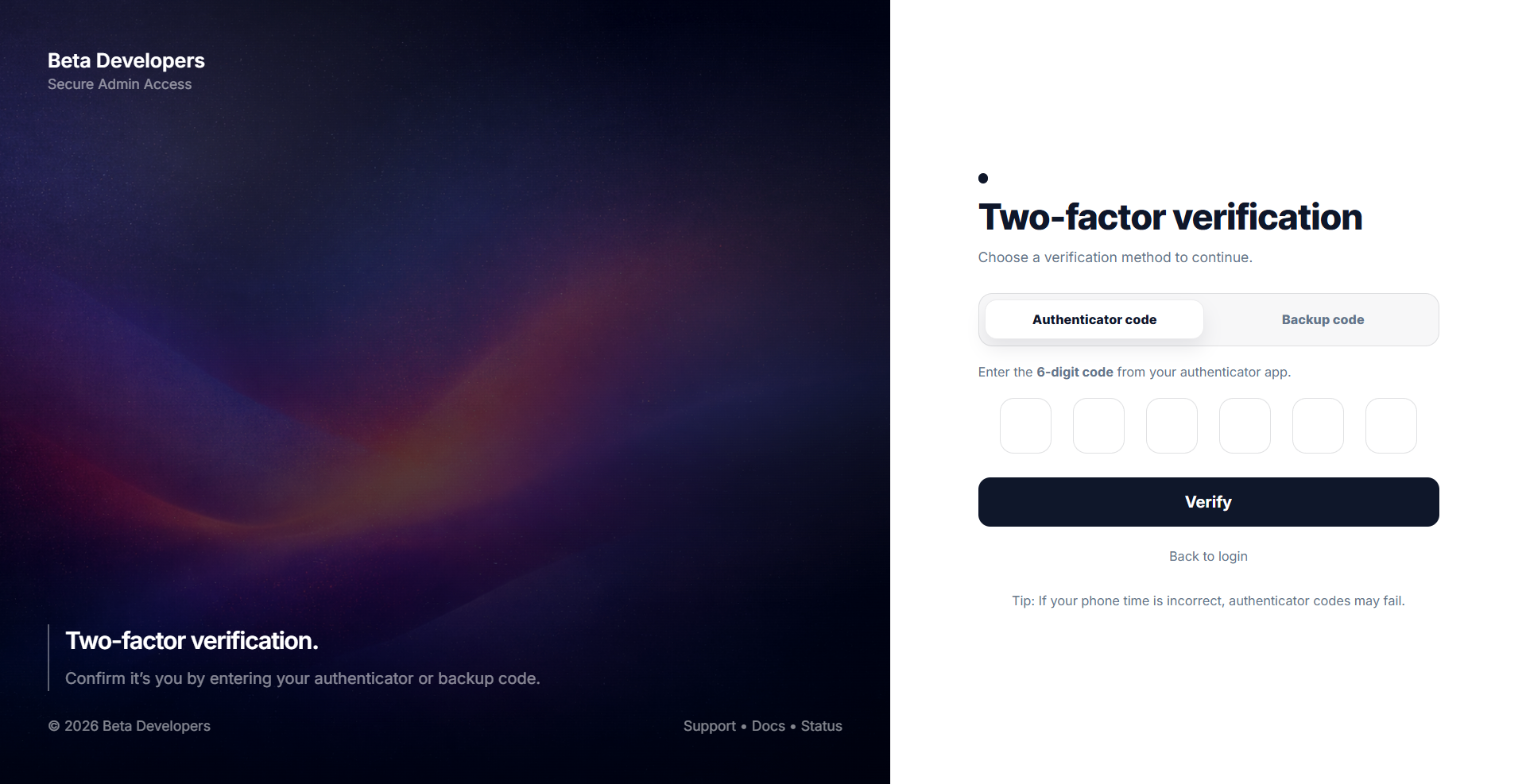
3) TOTP (Google Authenticator) + Backup Codes
TOTP is configured by the user and generates time-based codes inside an authenticator app. Once enabled, users must provide a valid rotating code during login. TOTP is highly secure because codes refresh automatically and cannot be reused.
During setup, the user scans a QR code and receives backup codes for emergency access. Backup codes can be downloaded only once, and each code can be used one time only. If a user loses both authenticator access and backup codes, they will remain locked out until the admin resets credentials.
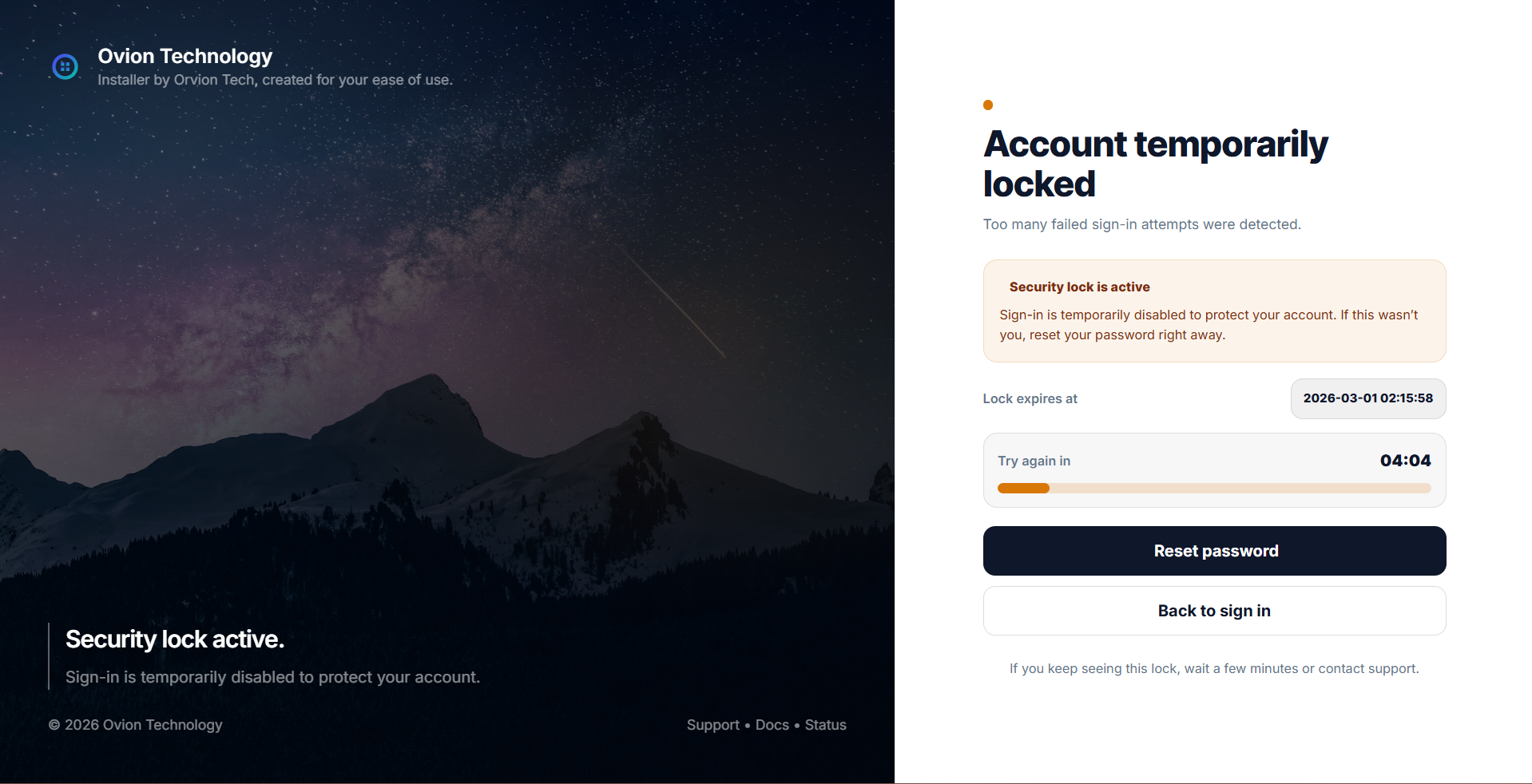
Temporary Lockouts (Locked Screen)
When abuse is detected (for example repeated failed login attempts or repeated incorrect OTP), the system temporarily locks the user for a short period. This blocks automated attacks while keeping accounts safe.
Email Verification
Email verification is mandatory for user accounts. During installation, the first admin can be marked as verified, but every user created afterwards must verify their email address. Verification emails are protected against spam: resends are only allowed after the previous link expires.
After verification, users are redirected to the login page and shown a success message. Email templates follow the same design system as the application (Material Dashboard 3 style).
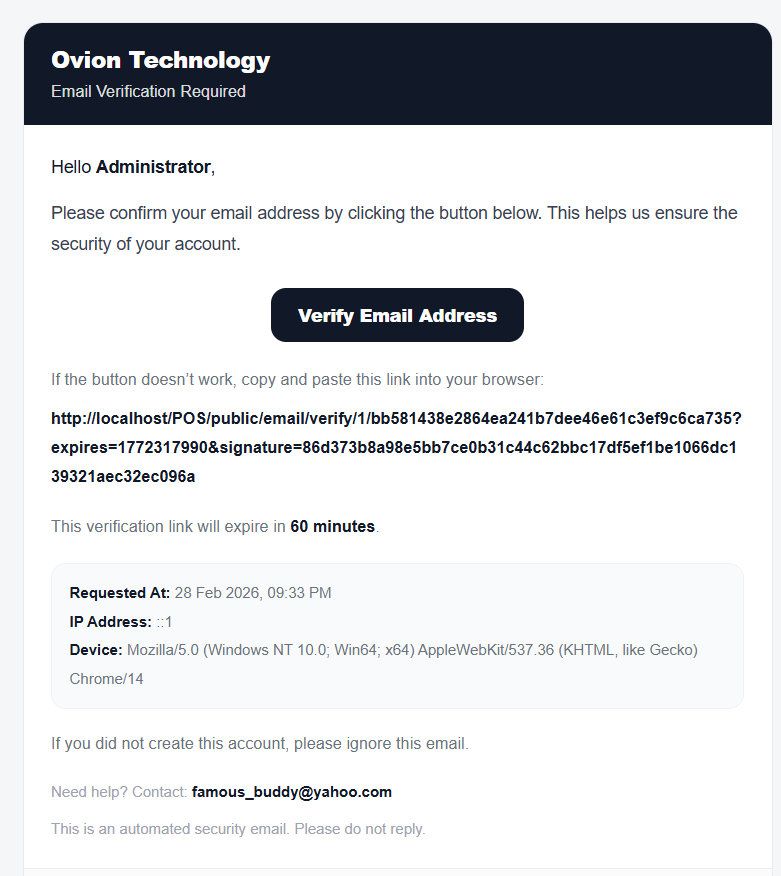
verify-email.png
Security Monitoring & Admin Alerts
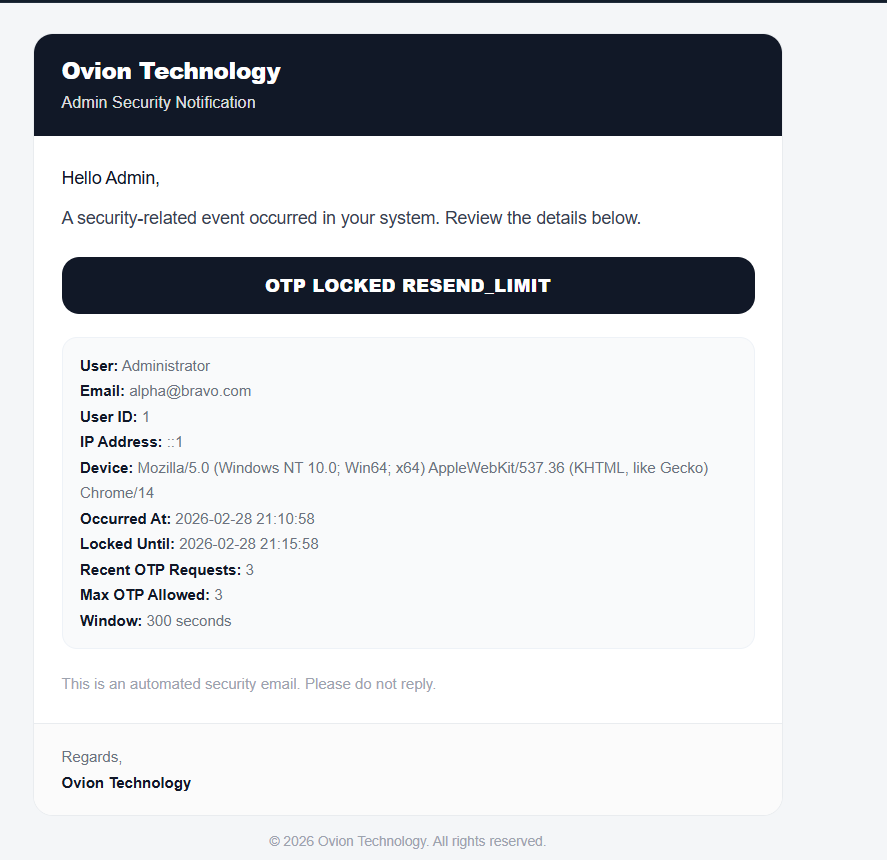
The system does not only block illegal attempts - it also informs the administrator whenever security actions are triggered. This helps you detect brute-force attempts, OTP spamming, or unusual activity early.
When a user triggers lockouts, exceeds retry limits, or crosses security thresholds, the admin receives an in-app notification inside the dashboard. For critical events, an email alert is also sent so the admin remains informed even when not logged in.
Forgot Password & Reset Password
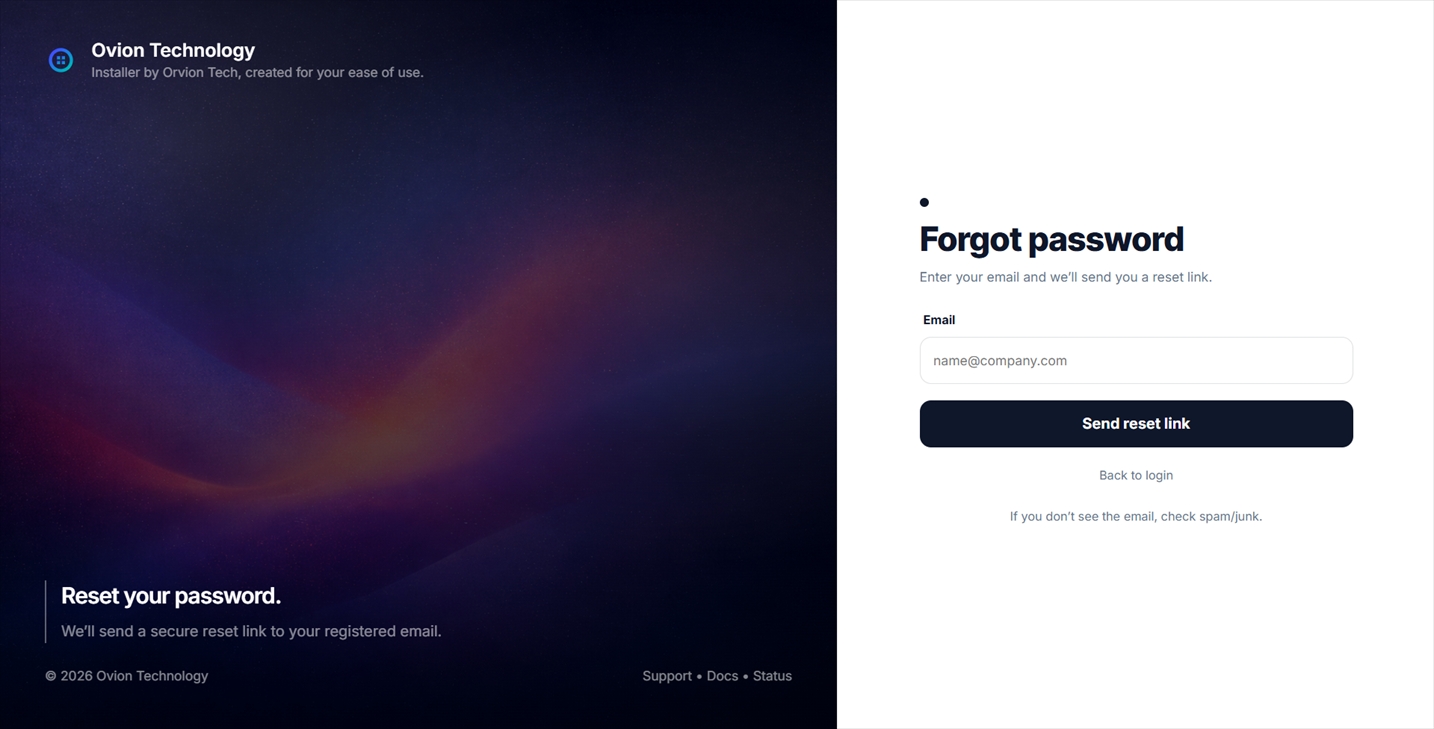
If a user forgets their password, they can request a reset link by entering their email address. The system emails a secure reset link. After changing the password, the user is redirected to the login page with a confirmation message.
If an admin creates a user with a temporary password, the system can enforce a password change at first login. This prevents shared or default passwords from being used long-term.
Email Delivery Mode (Instant vs Queue)
Authentication emails (OTP, verification, reset password, and security alerts) can be delivered either instantly or through a background queue system.
By default, email delivery runs instantly. This is simplest for shared hosting, but it may make actions feel slightly slower because the system waits for the email to be sent before completing the request.
On a VPS, you can enable queued delivery. In queue mode, emails are processed in the background by Laravel's queue worker, keeping the login experience fast even under heavy load. Queue setup is covered in the VPS guide.
Remember Me
The "Remember Me" option allows users to stay logged in across sessions. Admins can enable or disable this feature depending on the organization's security policy.
Login Branding
The login experience can display your brand name and logo. This is controlled from the Settings module under Branding. When enabled, the login UI automatically reflects your saved brand assets.